SkipTo › Search inside a YouTube video
How to search inside a YouTube video
You remember something said in a video, but not when. Here is how to find it in seconds instead of dragging the progress bar around.
Add to Chrome, it’s freeThe quick answer
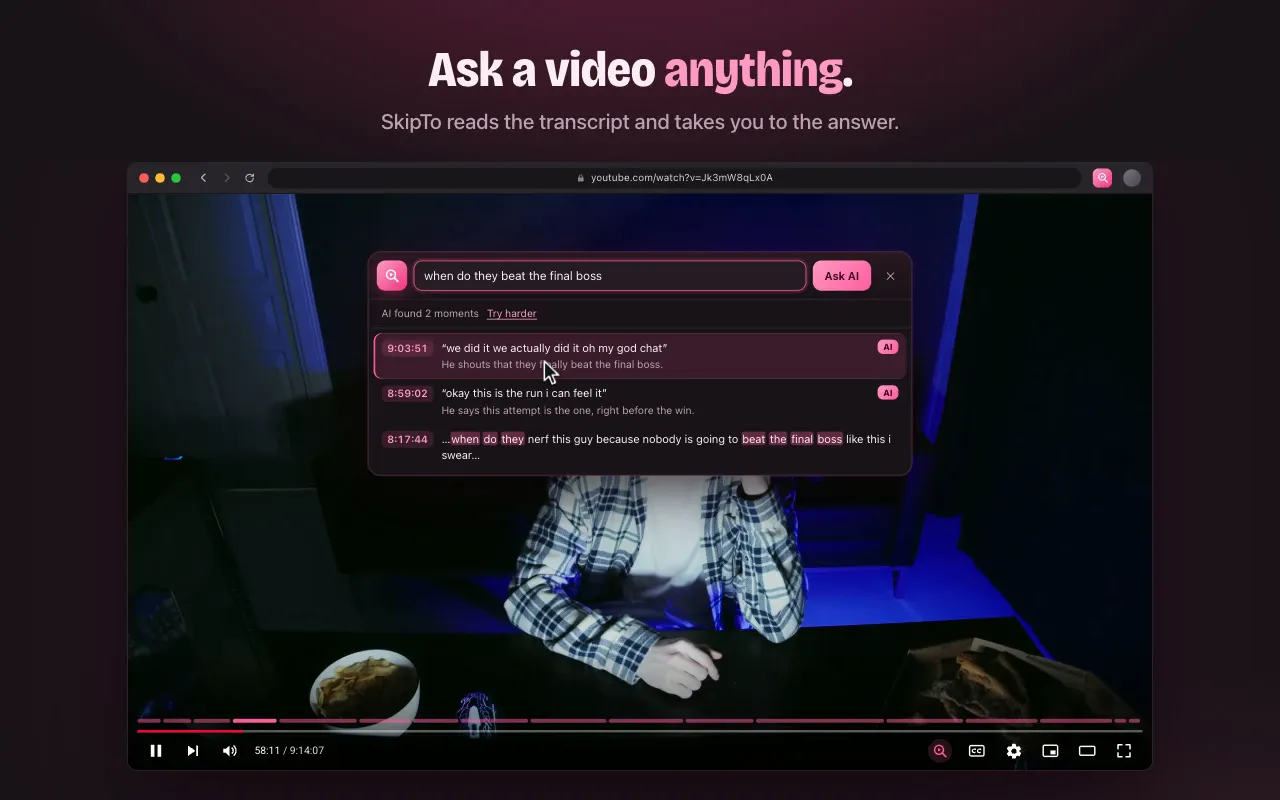
Install SkipTo, open the video, click the pink magnifier in the player and type a word or a line you remember. Every place it’s said shows up with its time. Click one and the video jumps there.
Option 1: YouTube’s own transcript
Many videos have a transcript you can search by hand:
- Under the video, open the description and click Show transcript.
- Press Ctrl+F (⌘+F on a Mac) and type the word.
- Scroll the transcript panel to the highlighted line and click it.
It works, but only for the exact words, the browser search also matches the rest of the page, and on a long video you scroll through hundreds of lines. It doesn’t help when you remember what happened but not what was said.
Option 2: SkipTo, search built into the player
- Results as you type. Exact phrases first, then close matches, with your words highlighted and the time of each line.
- Describe the moment. Type “when does she explain the second method” or “the part about the budget” and press Enter: SkipTo lists the moments that answer it, each with a short reason.
- Keyboard friendly. ↑ ↓ to move, Enter to jump.
- Sections on the timeline for long videos, so you can also browse by topic.
Tips for better results
- Use a distinctive word: a name, a number, a place, rather than “the” or “good”.
- If you only remember the idea, write it as a question: “where do they talk about pricing?”
- The video needs captions. Automatic captions count, and most YouTube videos in common languages have them.
Questions
Can you search a YouTube video for a word?
Yes. Open the transcript under the video and use your browser’s find, or install SkipTo to search from the player itself and jump straight to each match.
Does it work on long videos and livestream replays?
Yes. SkipTo is made for long videos: multi-hour streams, podcasts, lectures. Long videos are also divided into sections.
What if the video has no captions?
SkipTo searches what is said using the captions, so a video without any captions, including automatic ones, can’t be searched.
Stop scrubbing. Skip to the moment.
Free for Chrome, Edge, Brave and Arc on desktop. Works on YouTube and Kick.
Add to Chrome, it’s freeMore guides
Find a moment in a stream VOD
Missed the stream? Catch up by section, or type what you remember from it.
Chapters for Kick VODs
Long Kick VODs get sections on the timeline, so you can see what happened when.
Skip sponsor reads on YouTube
Sponsor segments are marked on the timeline, with a Skip button or auto-skip.
Find a quote in a podcast
Three-hour episode, one line you half remember. Type it and jump there.